How to Scale Digital Leathercraft Patterns for Tablet Sleeves
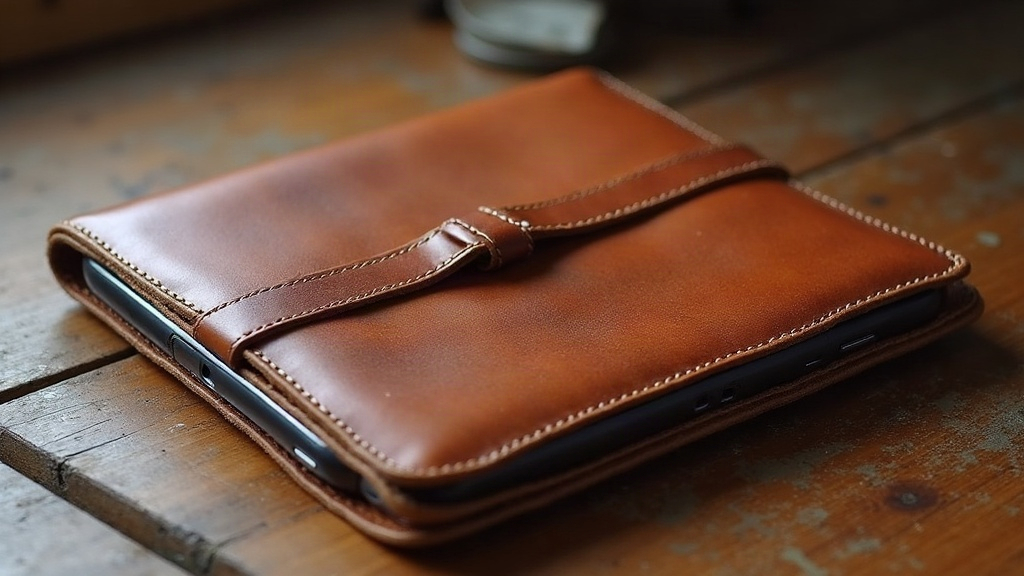
Scaling a digital leathercraft pattern for a custom tablet sleeve sounds easy enough. Just resize the PDF and print it, right? That’s actually the number one mistake beginners make, and it’s the reason so many first attempts end up with crooked stitch lines, sleeves that won’t close properly, and leather wasted on something that doesn’t fit. Here’s the correct, proportional way to scale patterns so your finished sleeve fits the tablet precisely and looks like something you’d actually pay for.
Why You Can’t Just “Resize” a Pattern
Most leathercraft patterns are drawn to an exact scale, usually 1:1, with stitch hole spacing (SPI, or “stitches per inch”) built right into the design. Stretch or shrink that pattern unevenly, even by accident through a printer’s “fit to page” setting, and you’ll throw off a few critical things:
- Stitch hole spacing, making hand-stitching uneven or impossible to line up on both sides
- Fold lines and dart placement, which control how the leather wraps around the tablet’s corners
- Closure alignment, whether that’s magnetic snaps, straps, or a zipper
A 5% distortion sounds minor on paper. But when you’re trying to fit a 9.7-inch or 12.9-inch tablet into a sleeve that’s supposed to hug it snugly, that small margin is the gap between “perfect fit” and “can’t close the flap.”
Step 1: Measure Your Tablet Correctly
Before you touch any pattern file, get exact measurements of the tablet itself (or the tablet plus case, if that’s what you’re sleeving):
- Height, width, and thickness at the thickest point, usually right near the camera bump
- Add 3-5mm of “ease” per side, since leather molds and stiffens with use
- Note the corner radius if you want rounded corners instead of square ones
Write these numbers down somewhere you’ll actually look at them again. They’re your scaling reference, not a rough guess you keep in your head.
Step 2: Find the Pattern’s Built-In Scale Reference
Good digital leathercraft patterns include a calibration square or ruler line printed right on the file, often a 1-inch or 1cm box. Treat this as your single source of truth.
- Open the file in a PDF or vector editor (Adobe Illustrator, Inkscape, or Affinity Designer all work).
- Measure the reference square on-screen using the software’s ruler tool.
- If it doesn’t come out to exactly 1 inch (or whatever size it claims), the file isn’t rendering at true size. Fix that first, before you scale anything else.
Never scale by eye, and never trust your printer’s default settings. Print the calibration square first and check it with an actual ruler.
Step 3: Scale Proportionally, Not by Dimension
Once you’ve got your tablet’s dimensions, calculate a single scale percentage using one dimension, usually height, since it’s less likely to get squeezed by a case lip:
Scale % = (Your tablet height + ease) ÷ Pattern’s original height × 100
Apply that same percentage to width and to every stitch-hole spacing in the file. Don’t stretch width and height separately, that’s exactly how you end up with skewed stitching and a flap that sits crooked.
- Use “Scale” or “Transform,” never “Resize to fit” or “Stretch”
- Lock the aspect ratio (look for the chain-link icon in most design software)
- If the software allows it, scale by percentage rather than typing in inches
Step 4: Adjust Stitch Spacing After Scaling
Once resized, re-measure the stitch holes. Standard hand-stitching spacing runs about 4-5mm (5-6 SPI). If the scaling pushed that spacing outside the 3.5-6mm window:
- Regenerate the stitch line with a stitching chisel or groover template set to the correct count, instead of just stretching the original holes
- Most leathercraft software (Adobe Illustrator with a punch plugin, or a dedicated tool like Leathercraft Pattern Design) lets you redraw the stitch line separately from the outer silhouette
Step 5: Do a Paper Test Before Cutting Leather
Print the scaled pattern on plain paper, cut it out, and fold it around your actual tablet. A few things to check:
- Does it close without putting strain on the stitch line?
- Do the corner darts lie flat, or do they bunch up?
- Is there enough room for cables, buttons, or a camera bump?
Only move to leather once the paper mockup fits the way it should. Skipping this step to “save time” almost always costs more time later.
Common Mistakes to Avoid
- Scaling only the outer outline and forgetting the stitch lines need to move too
- Ignoring leather thickness, since hides thicker than 2mm need a bit more ease than the pattern assumes
- Skipping the calibration check, which lets printer and software scaling errors stack on top of each other
- Using “fit to page” printing, which almost always distorts the aspect ratio without you noticing
Conclusion
Scaling a digital leathercraft pattern correctly really comes down to one idea: scale everything proportionally from a verified reference point, never by eye and never by whatever your printer decides is “fit to page.” Measure the tablet carefully, calibrate the pattern file first, apply one consistent scale percentage across the board, adjust stitch spacing afterward, and always test with paper before you touch the leather. Do this once, properly, and you’ll have a method you can repeat for any tablet size that comes your way.